Navigating the command line
You can use the Linux command line at the bottom of the page to practice commands by starting the task and opening the command line in its own window.
The location of the working directory can be changed with the cd- command, which stands for change directory. The cd- command takes a path or directory name and changes the working directory to this new location.
1cd directoryThe image below shows how the working directory in the command line was changed to point to the root of the file system. After this, the location pointed by the working directory was checked using the pwd command.

*Unlike the Windows operating system, Linux does not separate different disks under its own letters. ****/ ***directory, or root directory, is literally the base or foundation of the file system. You can think of C:/ in the Windows world as equivalent to / in the Linux world, with the exception that in the Linux world, nothing is located under, for example, the D:/disk but everything can be found under the root.
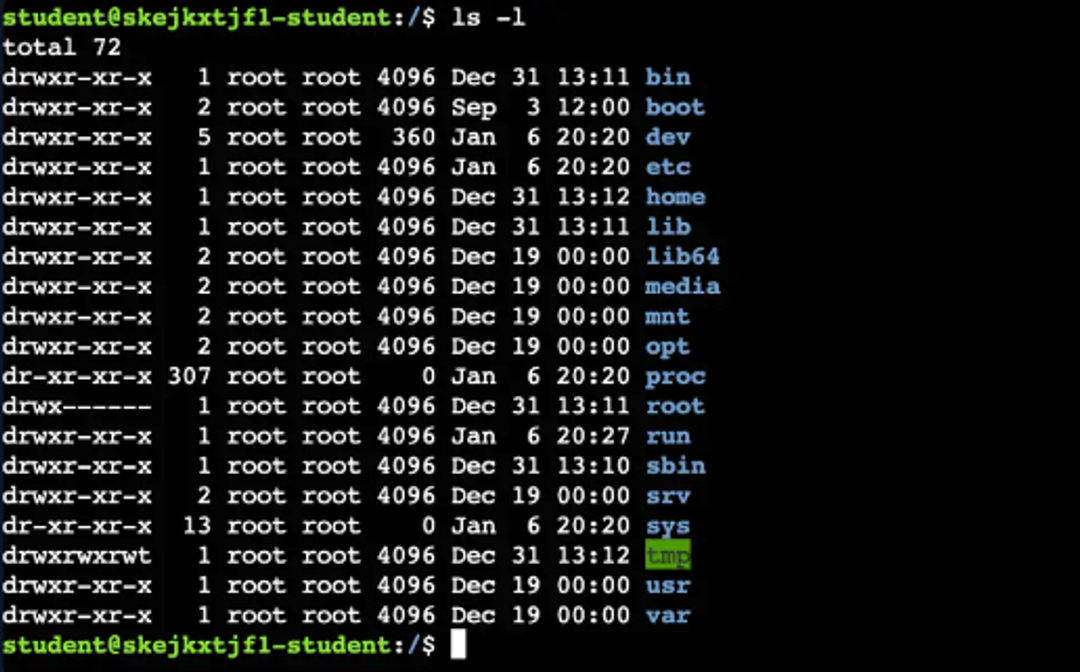
The ls-command comes from the word list and simply lists the files and directories in the given path.
1ls /home/Simply giving the ls command to the command line lists the directories and files below the current working directory. The command can also specify a path from which you want to list the files.
The image below shows the ls command executed at the root of the file system, with the -l option used in the command for a more user-friendly listing.
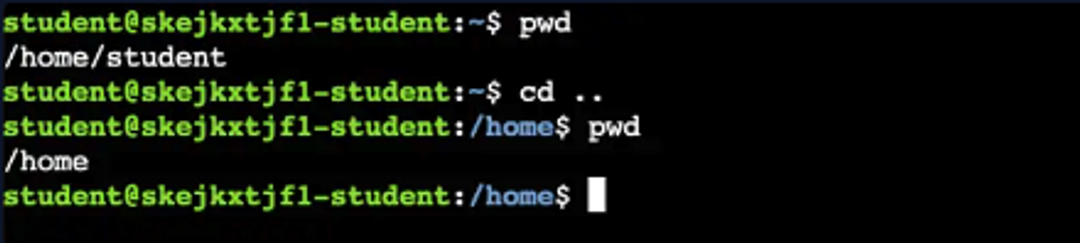
When the working directory is desired to be moved upwards in the directory structure (closer to the root), this can be indicated by using two dots.
1CD..In the image below, the pwd command is first executed and it can be seen that the current working directory points to the /home/student path. After that, the cd command is used to navigate one directory up and the change in the new working directory is verified by executing the pwd command again.
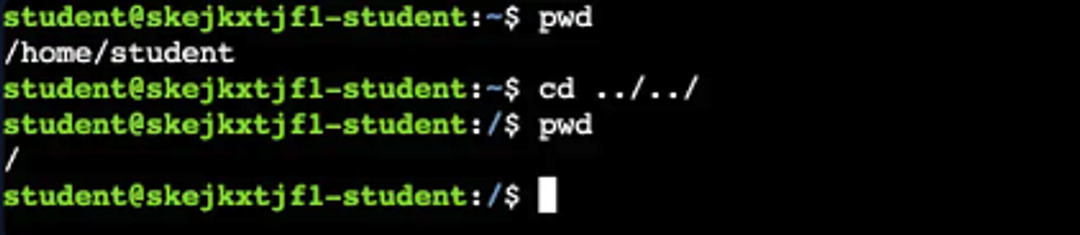
You can also jump multiple directories upwards at once using the following method.
1cd ../..The following image checks the current location of the working directory. After that, we go directly to the root without visiting the /home directory. Finally, we make sure that we are in the root.
Finally, by entering only the *cd-*command, you will move the working directory back to your home directory. So in this case, to the /home/student directory.
Learn to hack — start here
Hundreds of interactive courses, virtual labs and CTF challenges in your browser. Start a free trial — no card required.