Deleting files and folders
You can use the command line at the bottom of the page to practice commands. Complete the given tasks at the end.
File deletion happens with the rm- command, which comes from the word remove.
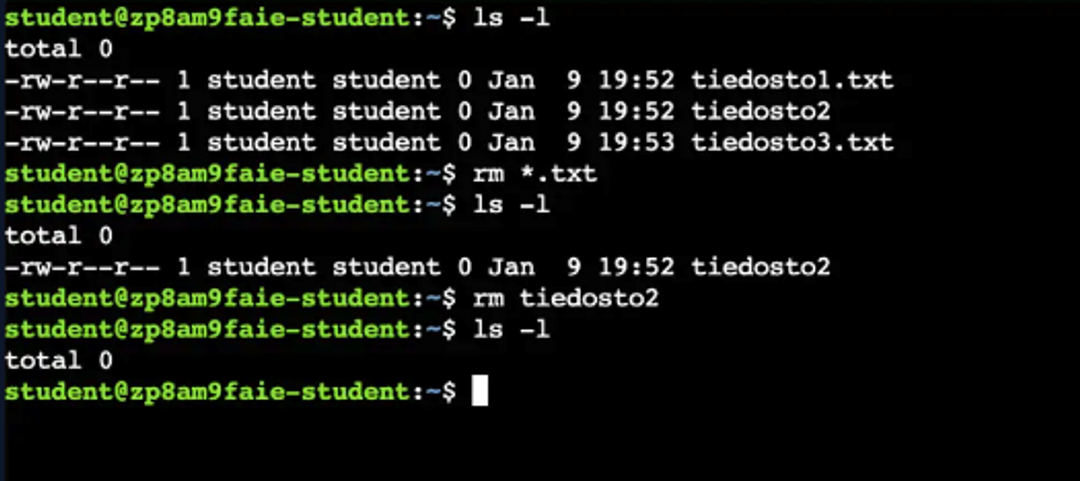
1rm file.txtIn the image below, we first remove two txt files using the rm command and finally remove the last remaining file. We could have also removed all files by executing rm * .
Deleting folders is slightly different from files, as simply using the *rm-*command does not allow deleting a folder. There are two ways to delete folders depending on the situation. You can delete an empty folder using the *rmdir-*command.
1rmdir folderIf the folder is not empty, you can use the *rm-*command with the *-r-option. -r-*option removes the folder and all the folders and files inside it. The *rm-*command also has the *-d-*option, which removes the folder only if it is empty, similarly to rmdir.
1rm -r folder # deletes the folder and everything inside the folder
2rm -d folder # delete the folder if this is empty
3rmdir folder # delete the folder if this is empty
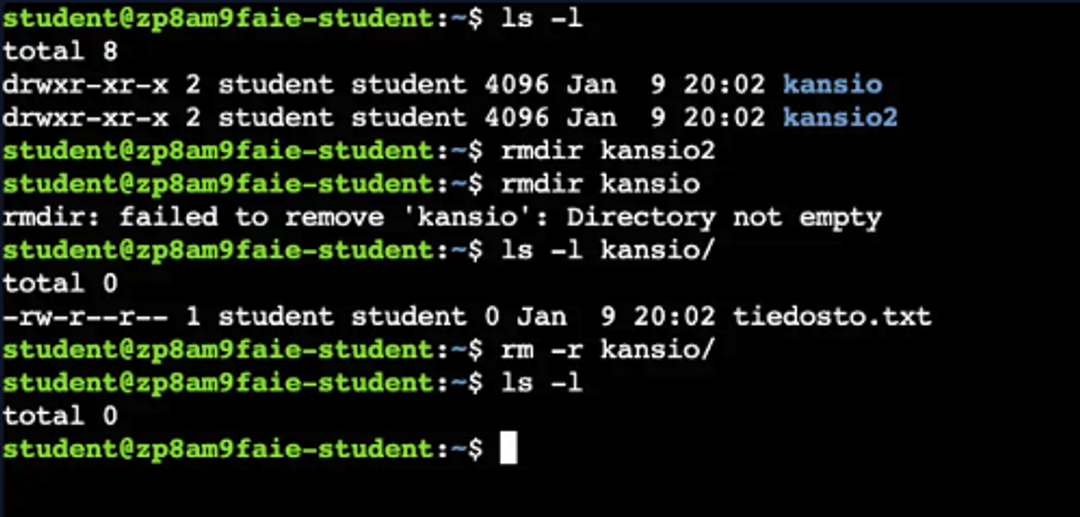
In the picture below, we first remove a directory named kansio2 with the rmdir command. After that, we attempt to remove a directory named kansio and find out that the directory is not empty. Then we delete the directory and the file contained in it using the -r option.
The module lists some use cases for commands, but we recommend familiarizing yourself with and freely experimenting with commands. These can be safely tested in a lab environment.
Learn to hack — start here
Hundreds of interactive courses, virtual labs and CTF challenges in your browser. Start a free trial — no card required.