10Taking care of information security
Changing a user's password
Easy10MIN
Changing Domain User Password
Changing the password of an Active Directory (AD) user is a common task that IT personnel perform regularly. This can be done in several different ways depending on whether you are a user changing your own password, an administrator changing another user's password, or a user requesting a password change remotely. Here are instructions for a few of the most common methods:
User Changes Their Password in Windows
Ctrl + Alt + Del -Key combination:
Press Ctrl + Alt + Del and then select Change password.
Enter your old password, write a new password, and confirm it.
Settings Application (Windows 10/11):
Open Settings > Accounts > Login settings.
Find an alternative for changing your password and follow the instructions.
System Administrator Changes User Password:
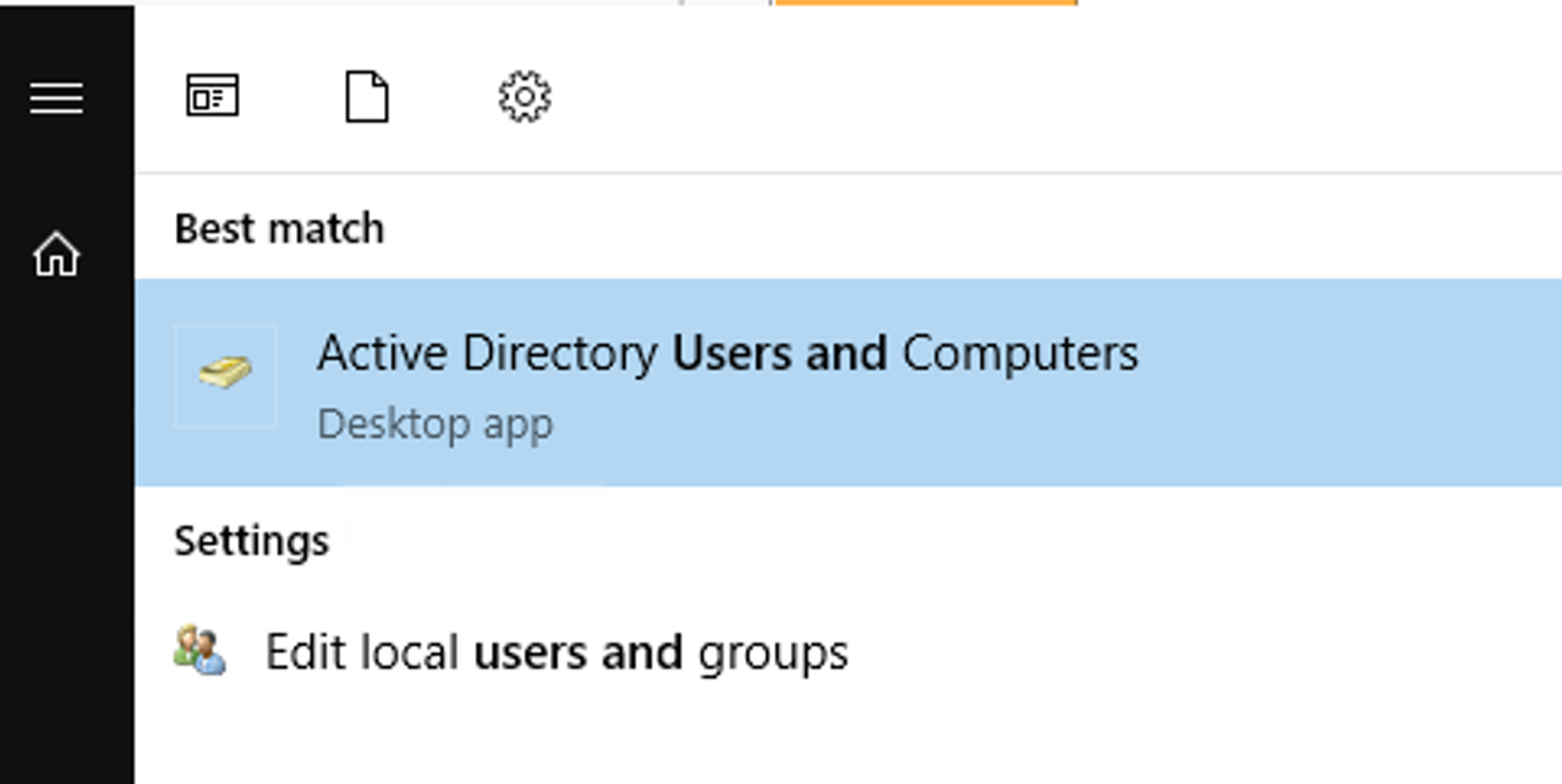
- Active Directory Users and Computers (ADUC): Open the Active Directory Users and Computers console.
- Navigate to the user's location in AD, right-click on the user and select Set Password or Reset Password, depending on the version.
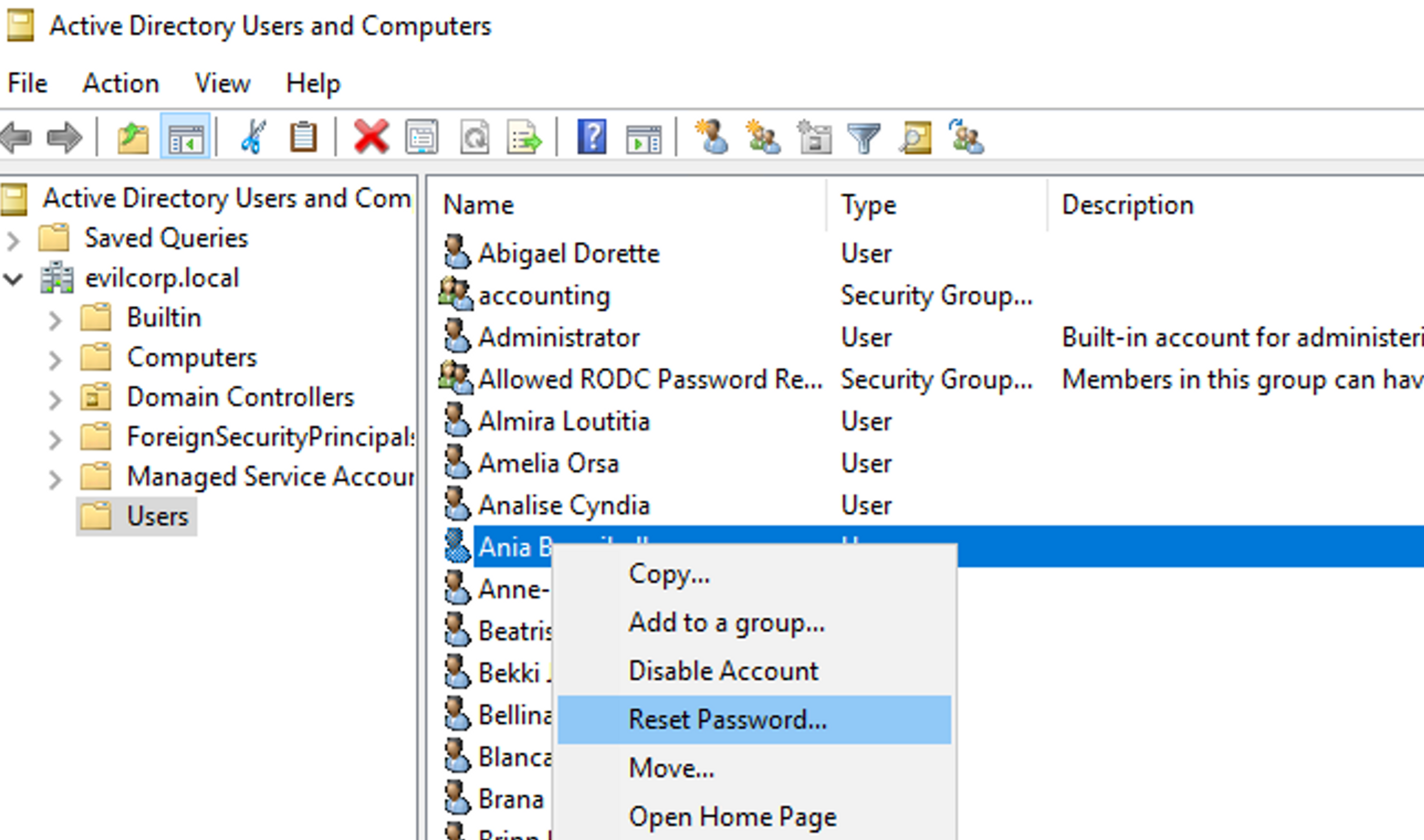
- Follow the instructions to change your password.
1 / 3
Hakatemia Pro
Learn to hack — start here
Hundreds of interactive courses, virtual labs and CTF challenges in your browser. Start a free trial — no card required.